
TEAMRESEARCH · USER GUIDE
Your research, from plan to publication.
A practical guide to planning projects, collaborating with a team and keeping your research moving.
1. Getting started
TeamResearch brings the main parts of a research project into one workspace: project planning, data collection, writing, submissions, deadlines and collaboration.
Your main workspace
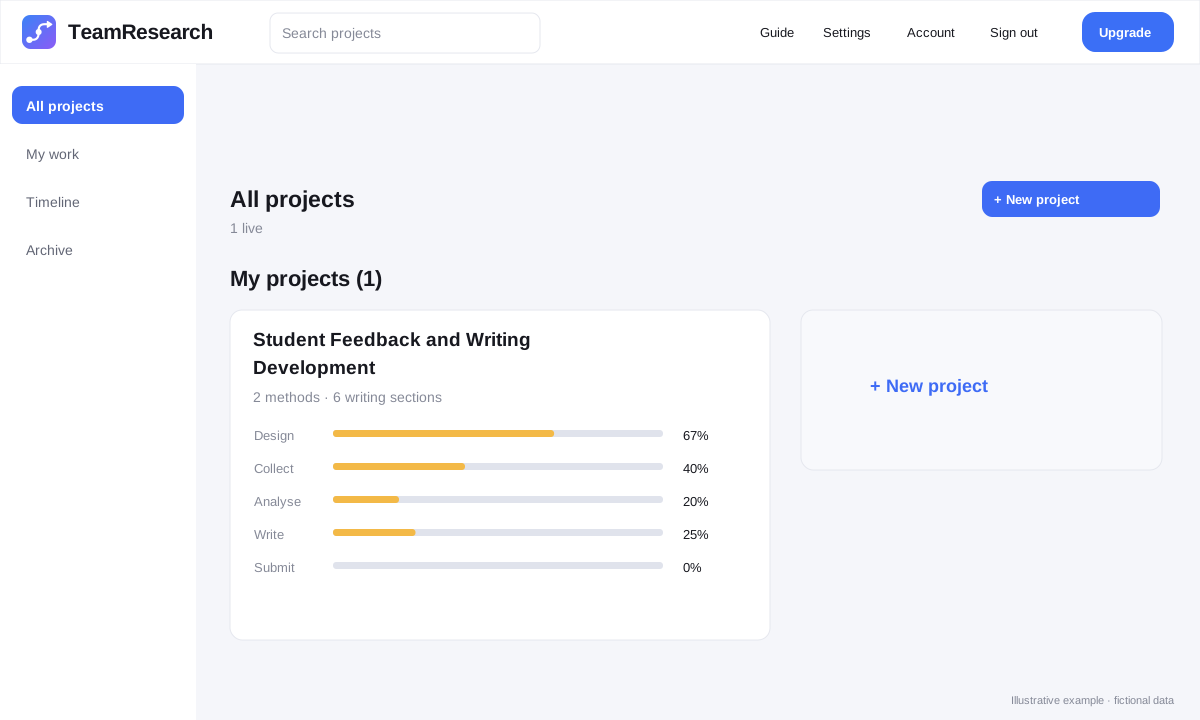
- All projects — open and review active projects.
- My work — see tasks and writing sections assigned to you.
- Timeline — view dated work and adjust schedules across projects.
- Archive — find projects that have been archived.
Create a project
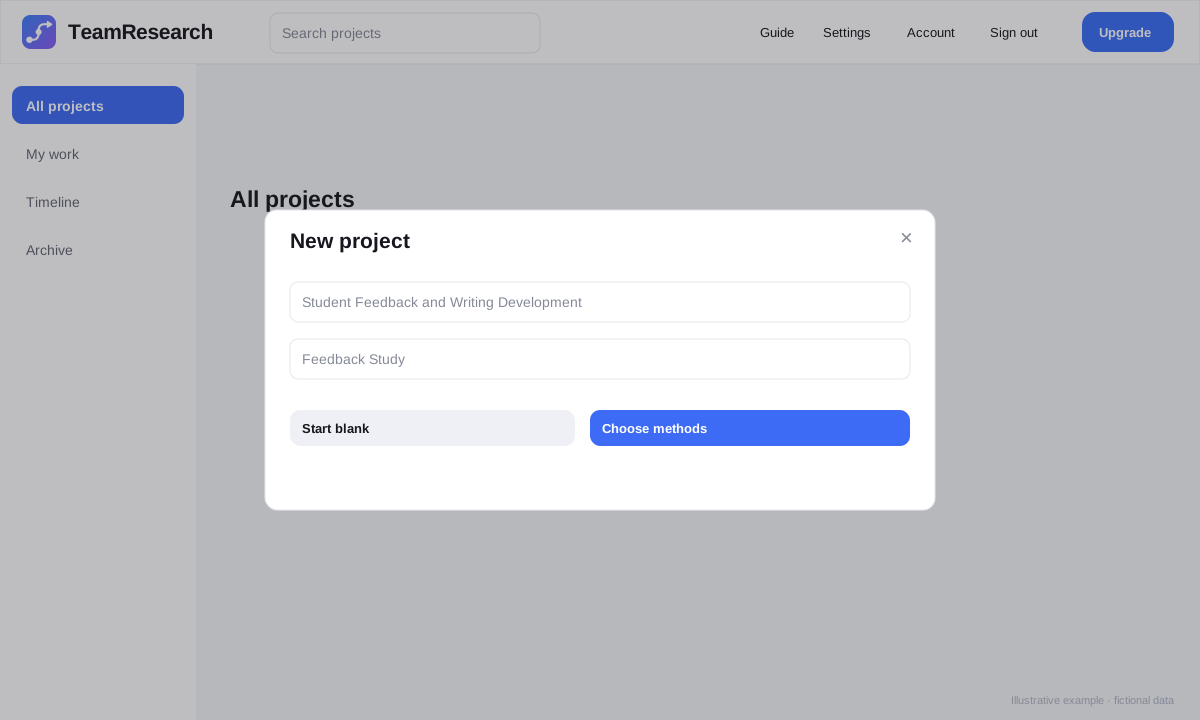
- Select New project.
- Enter the project title and an optional short name.
- Select Choose methods, choose the methods you need, then select Next. Alternatively, choose Start blank.
- Review the setup and select Create project. You can adjust methods, tasks, writing sections and dates afterwards.
2. The project overview
The Overview is the project dashboard. It shows overall progress and gives quick access to the project checklist, data methods, writing and submissions.
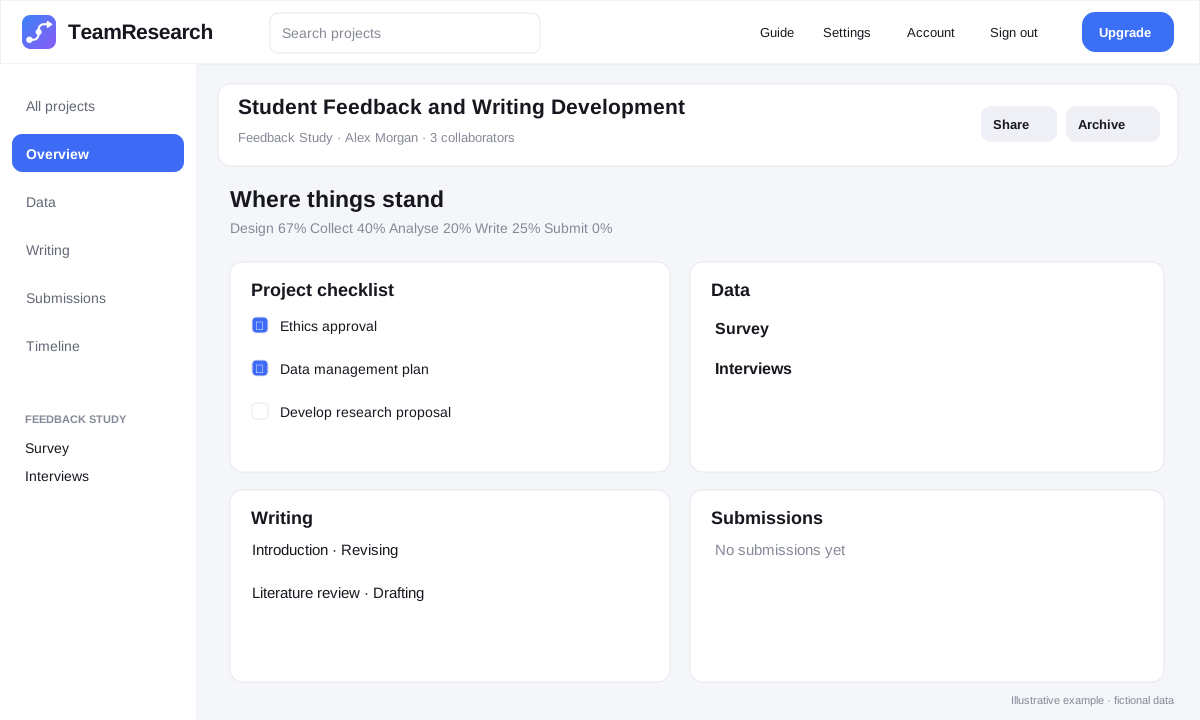
Project checklist
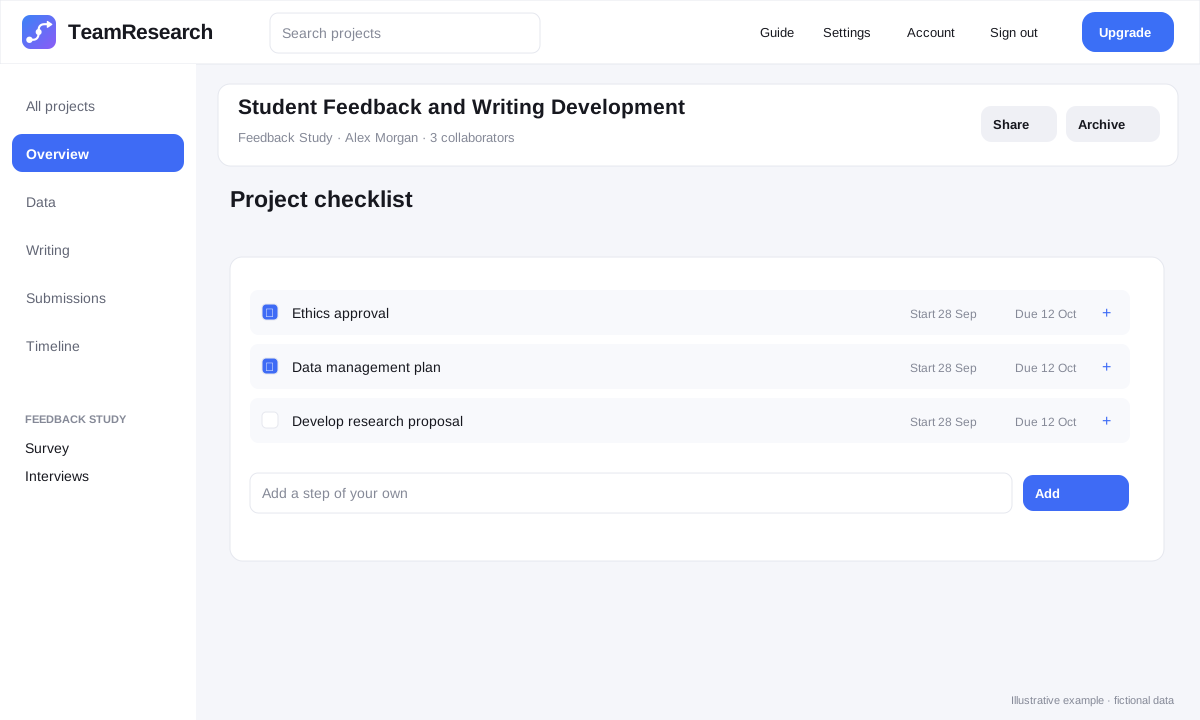
- Tick an item when it is complete.
- Use Start and Due to add dates.
- Use the + control to assign a collaborator where available.
- Add a custom checklist item at the bottom of the checklist.
Share and collaborators
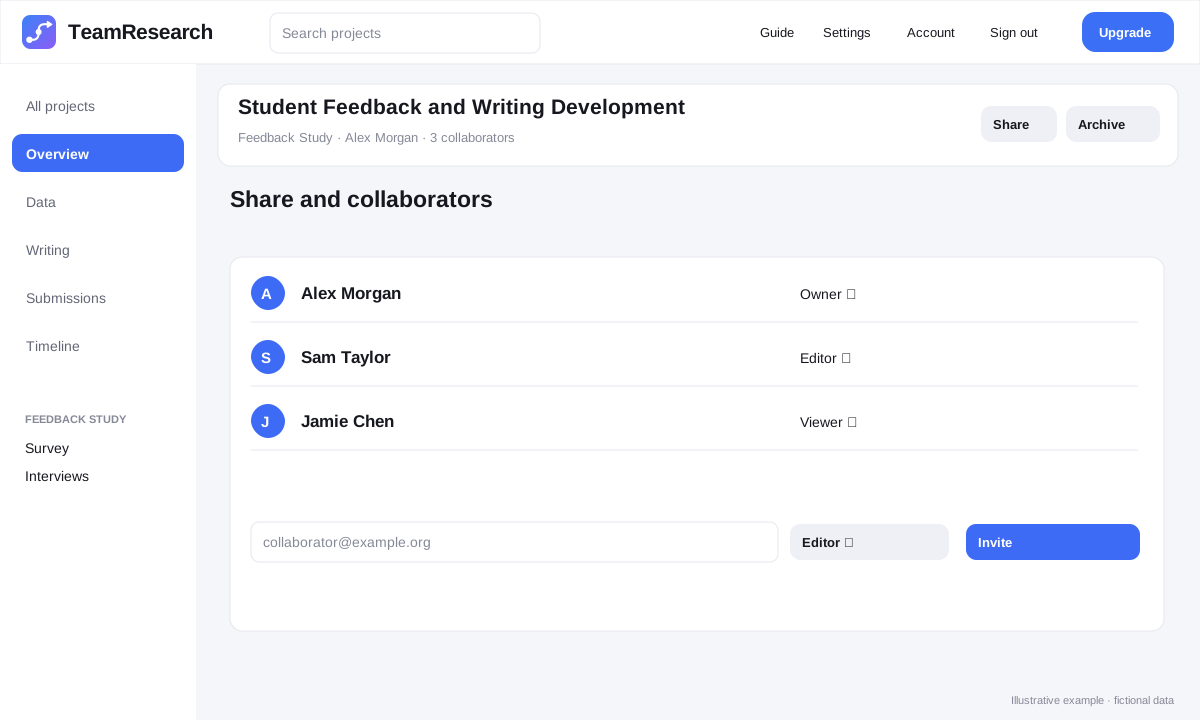
Project owners can invite collaborators by email and choose Editor or Viewer. Editors can work on the project; Viewers have read-only access. Collaboration availability depends on the project owner’s plan.
Back to contents ↑3. Managing research data and methods
The Data area organizes research methods and the steps required to carry them out. Each method can contain design steps and one or more collection/analysis rounds.
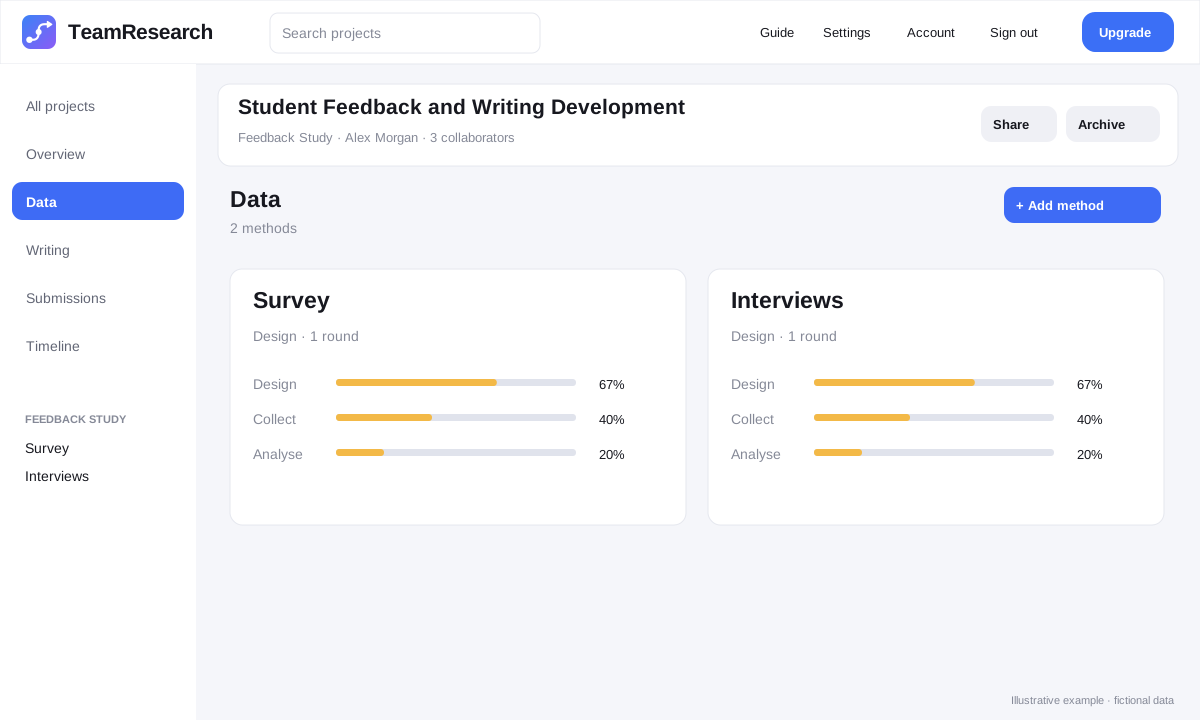
Work inside a method
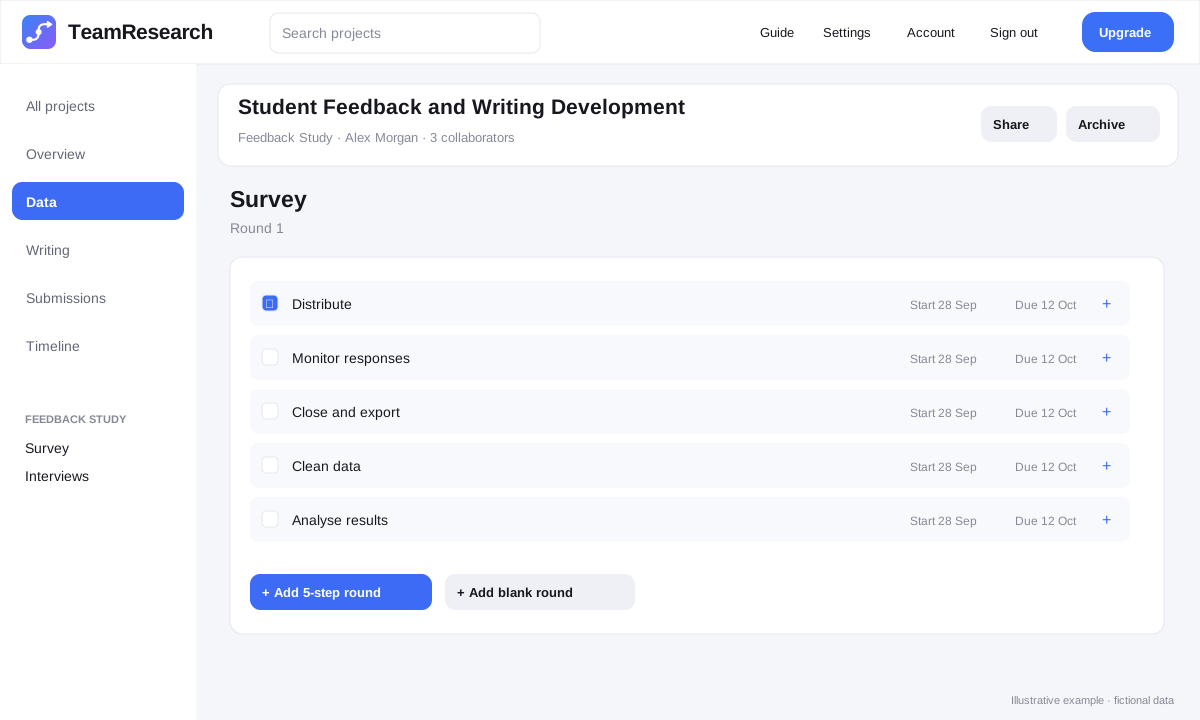
- Open a method from the Data page.
- Tick steps as they are completed.
- Add Start and Due dates to place work on the timeline.
- Use + to assign work to a collaborator.
- Add your own step when the default workflow does not cover it.
- For repeatable work, add another 5-step round or a blank round where available.
4. Managing writing
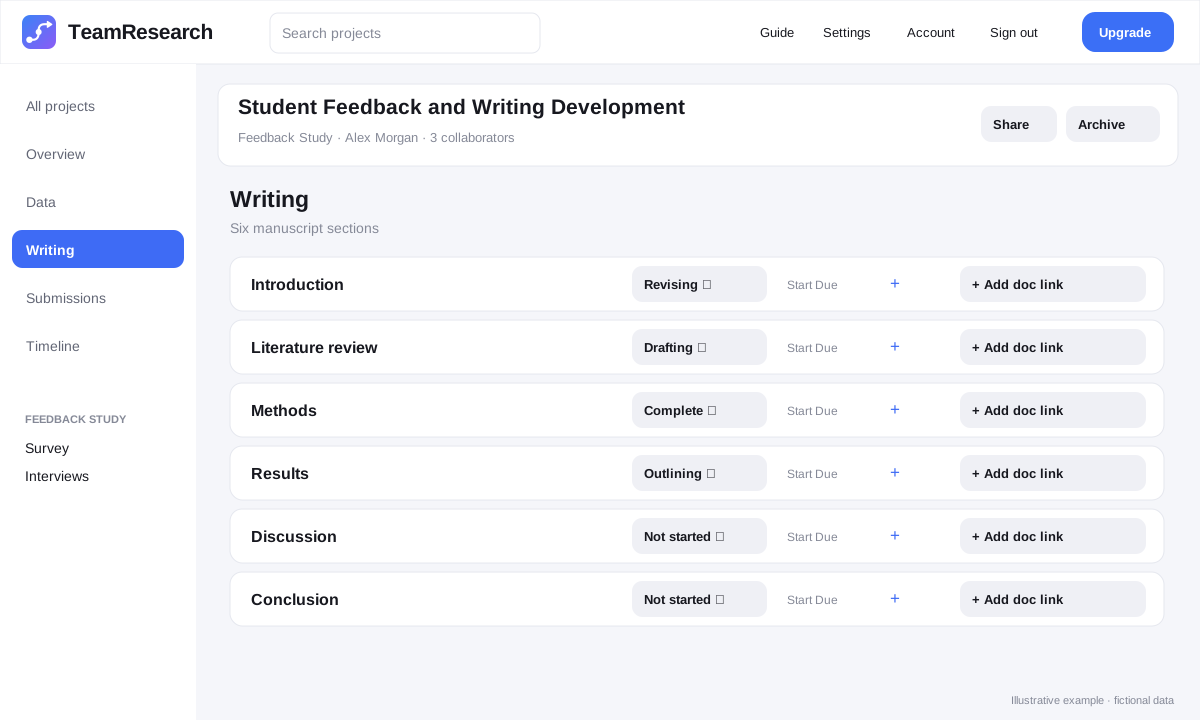
Writing is divided into sections such as Introduction, Literature review, Methods, Results, Discussion and Conclusion. You can add your own sections when the project needs a different structure.
Writing status
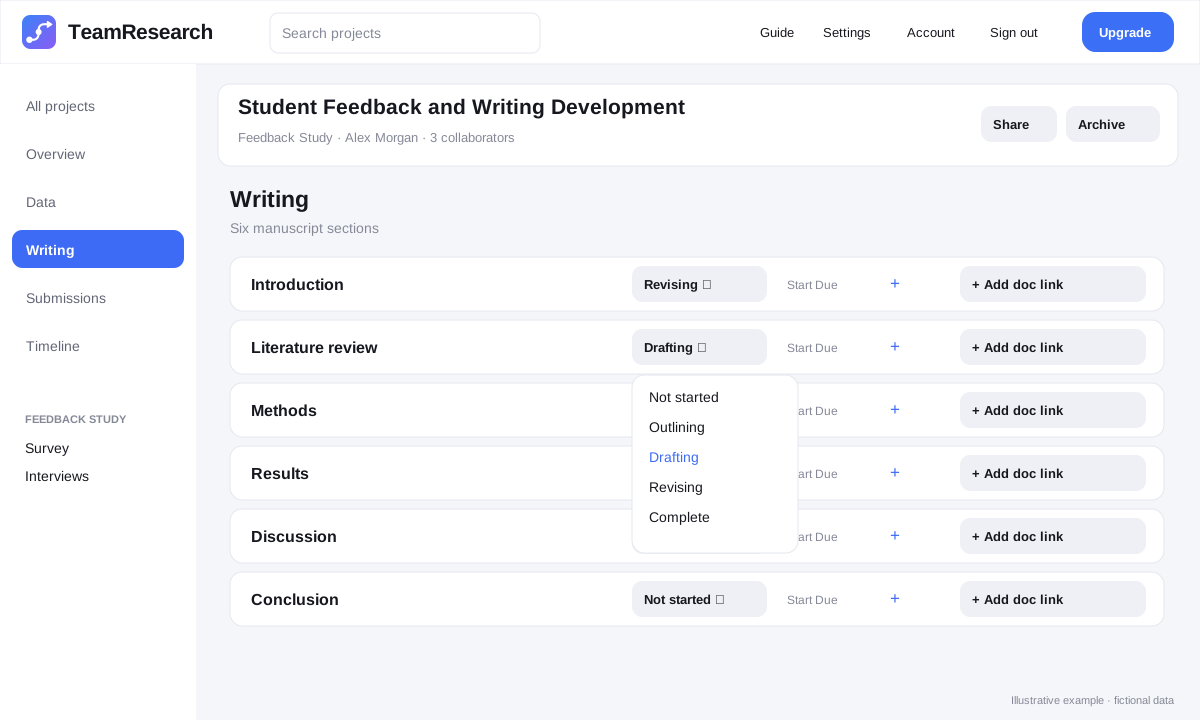
Use the status menu to move a section through Not started, Outlining, Drafting, Revising and Complete. Completing sections contributes to the project’s Write progress.
Link your working document
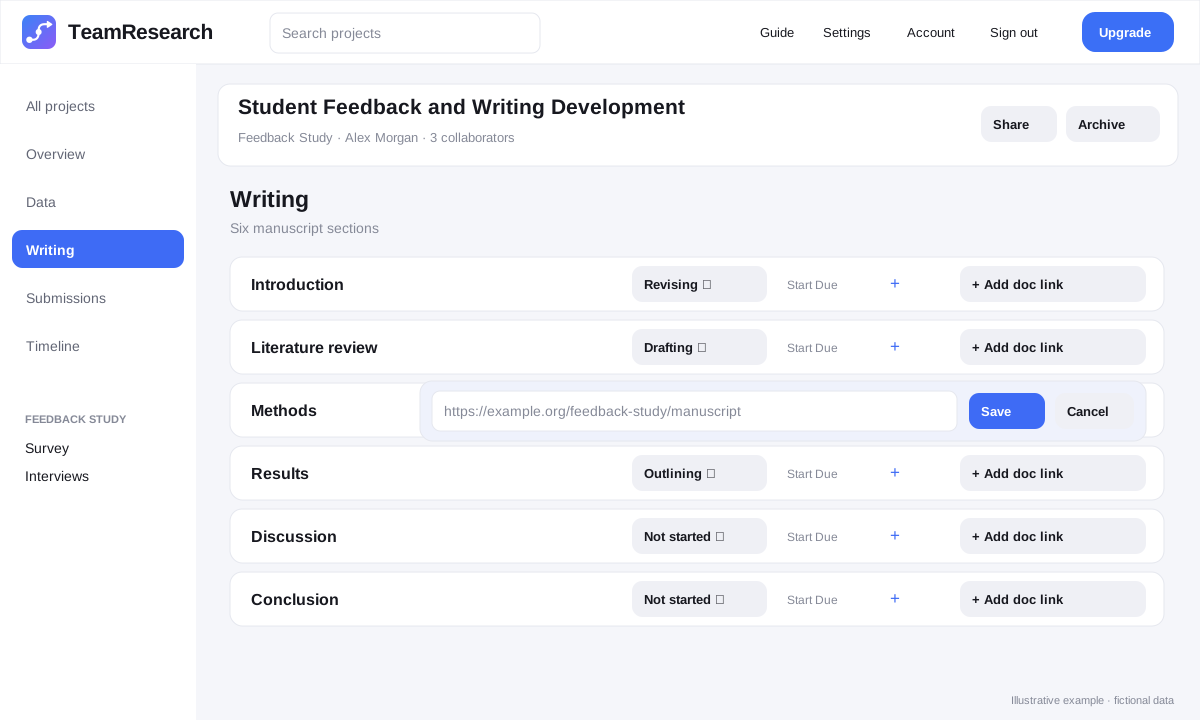
- Select + Add doc link beside the section.
- Paste the link to the document you are using for that section.
- Select Save. Set access permissions in the external document service so only the intended collaborators can open the document.
- Use the trash icon to remove the link if it is no longer needed.
5. Tracking submissions
The Submissions area keeps a record of where the work has been sent and what happened afterwards.
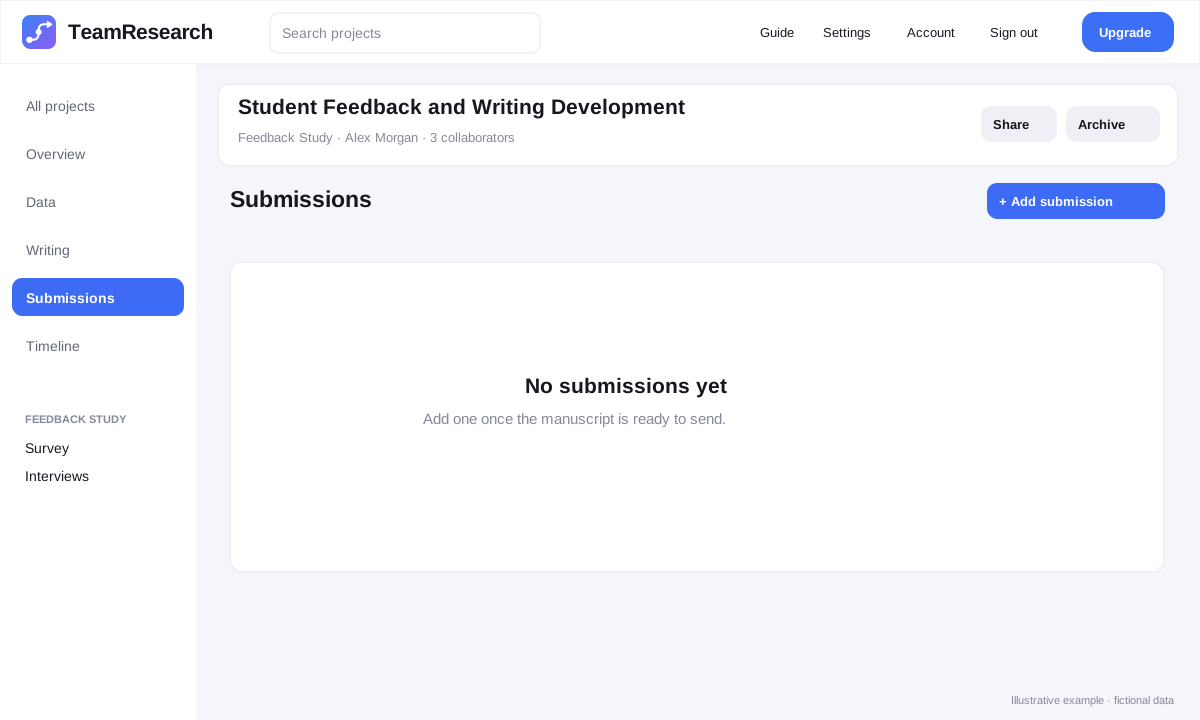
Add a submission
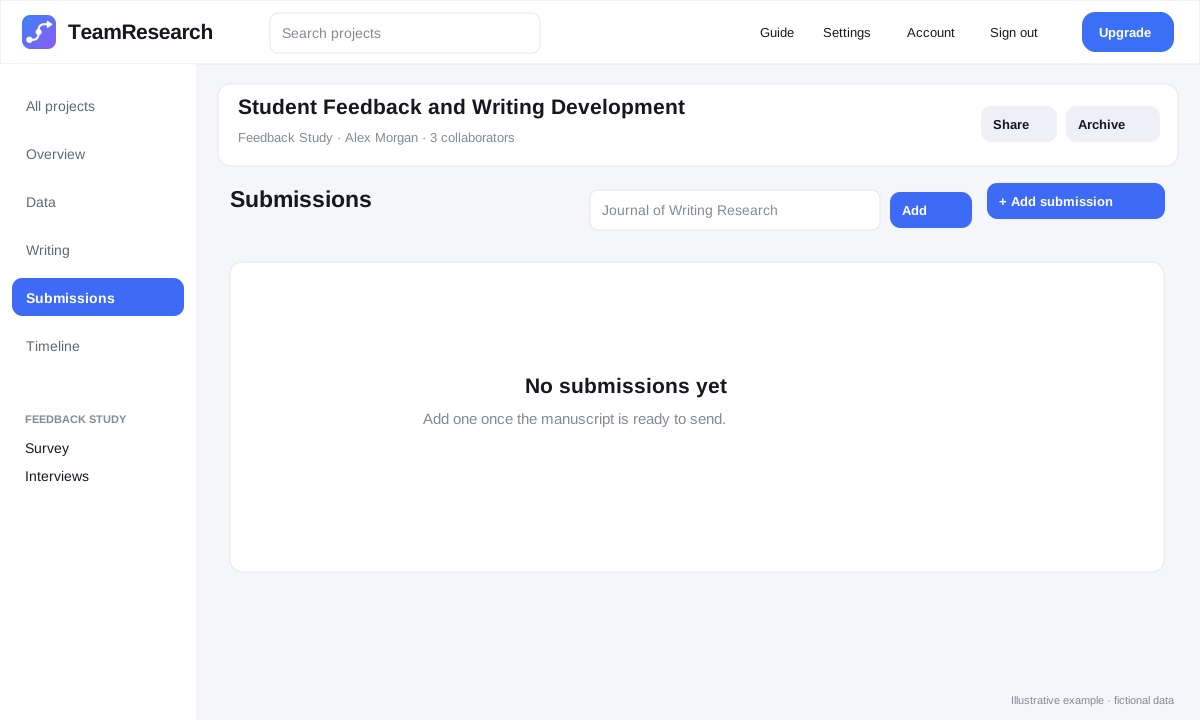
Log updates
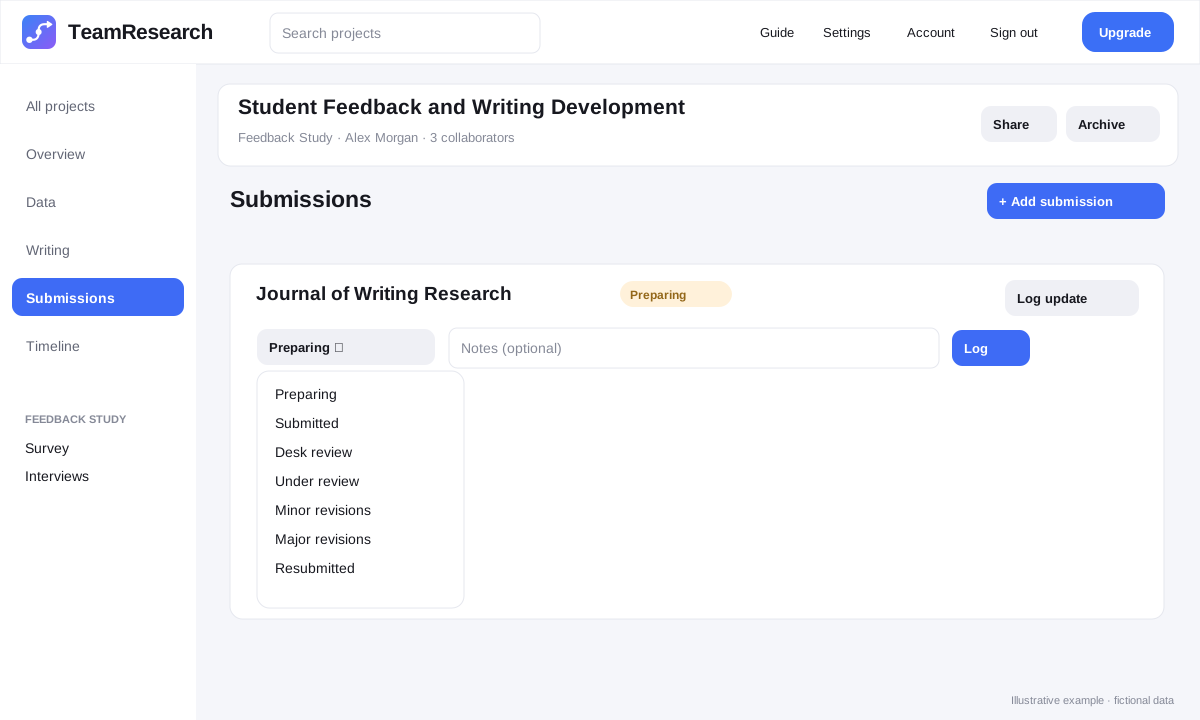
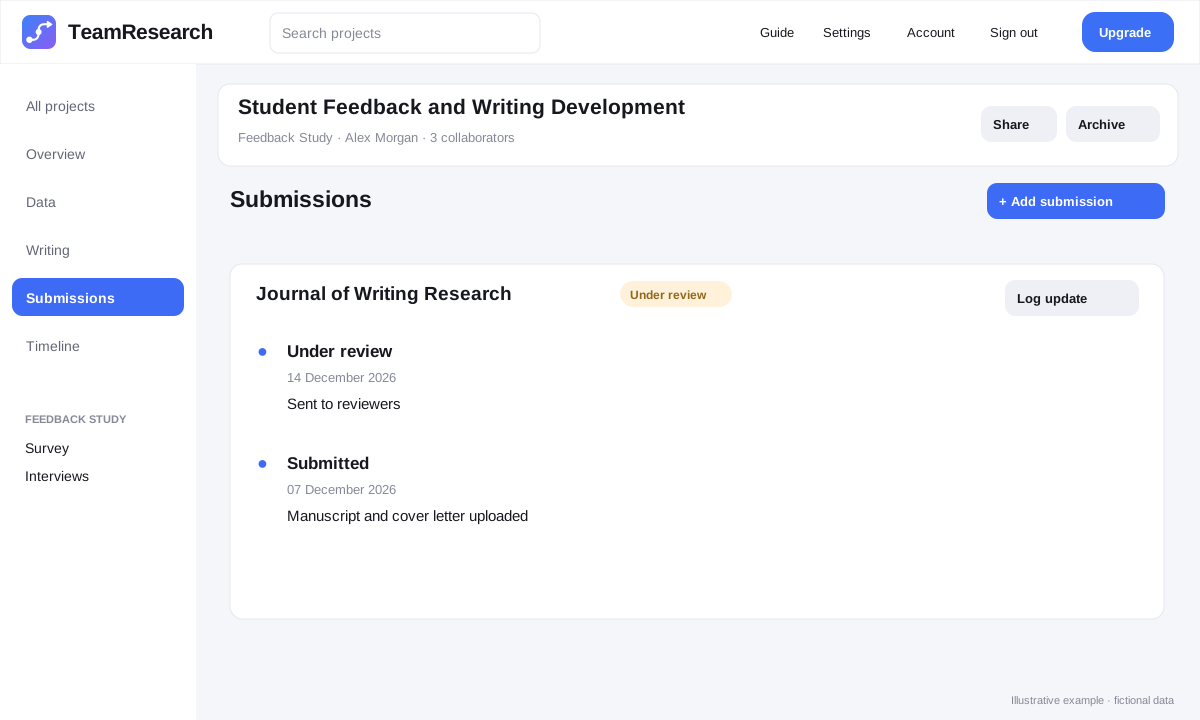
Status options cover the publication workflow, including preparing, submitted, desk review, under review, revision stages and resubmission. Log an update whenever the status changes.
6. My work and team workload
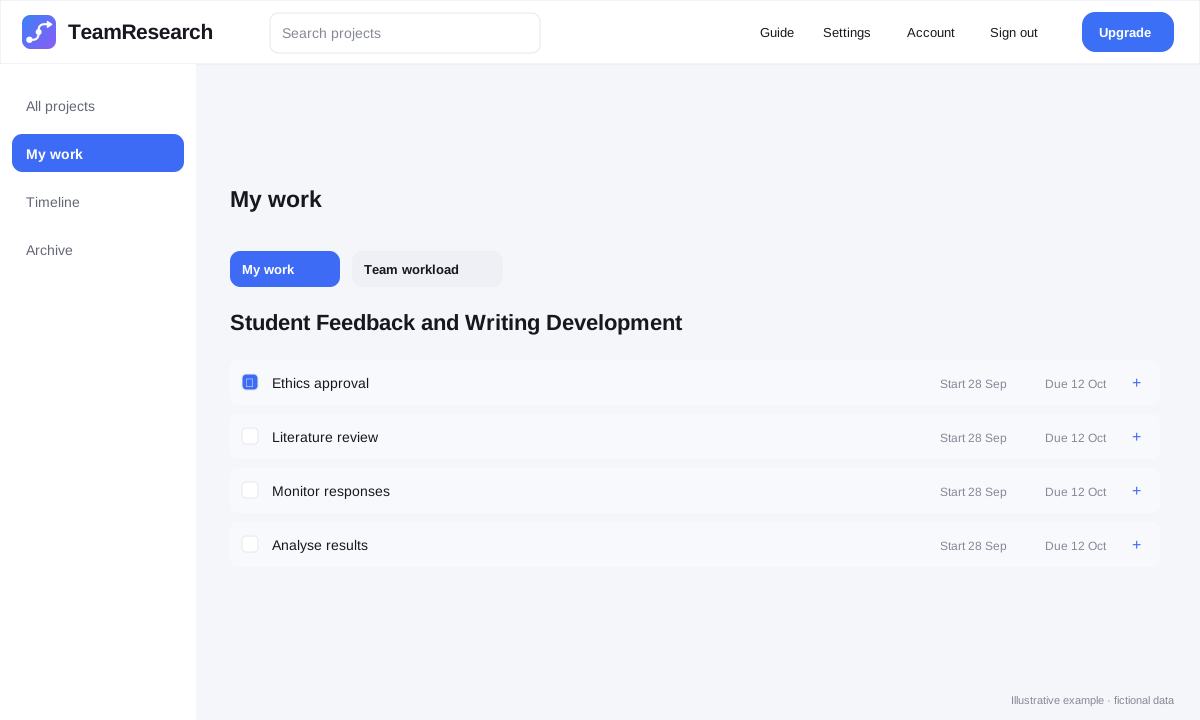
My work pulls together assigned items from across projects, so you do not need to open every project to find your next task.
Team workload
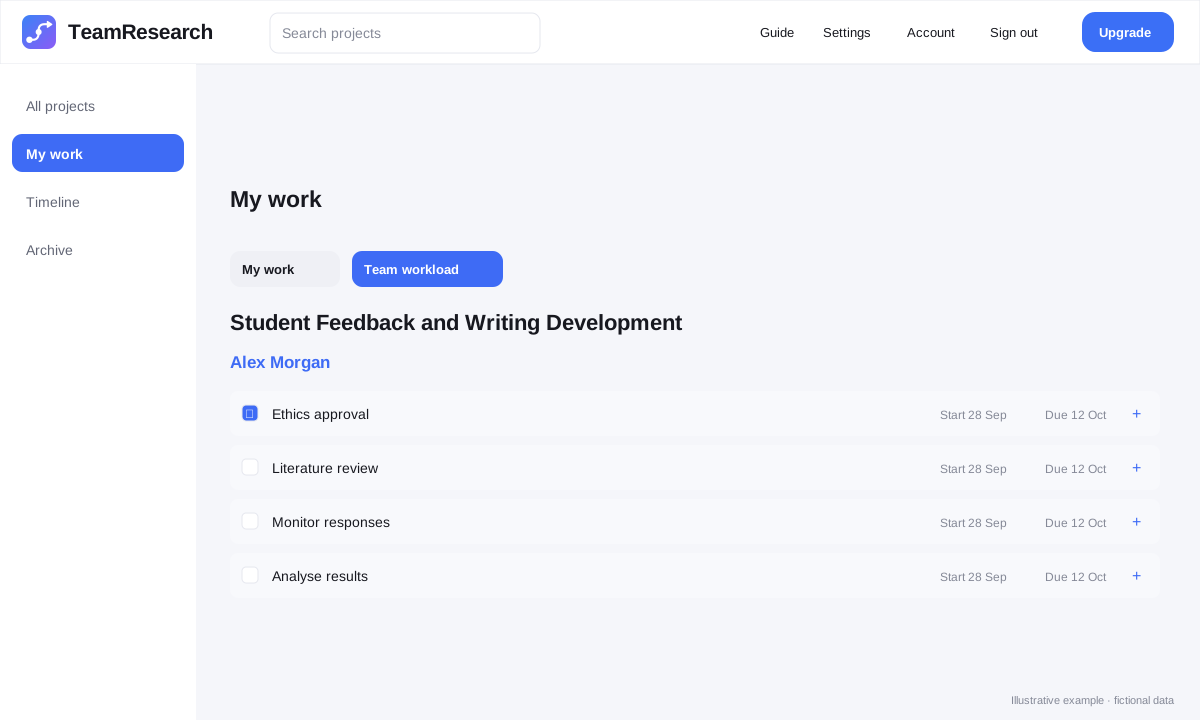
Use Team workload to see assignments within projects you can access. Check overdue items and workload concentration when coordinating collaborators.
Back to contents ↑7. Timeline
Timeline is an interactive schedule for dated steps and writing sections. Open Timeline from the main workspace to view multiple projects, or from inside a project to start with that project selected. Timeline is available on Team and Lab plans.
- Use the zoom slider to change how much space each day occupies. Zoom in to make short bars and their handles easier to grab.
- Use the project filter to choose which projects appear. Items are grouped by project and research phase.
- Steps and writing sections need a due date to appear. If no start date is set, the timeline uses the item’s creation date.
Move or resize a bar
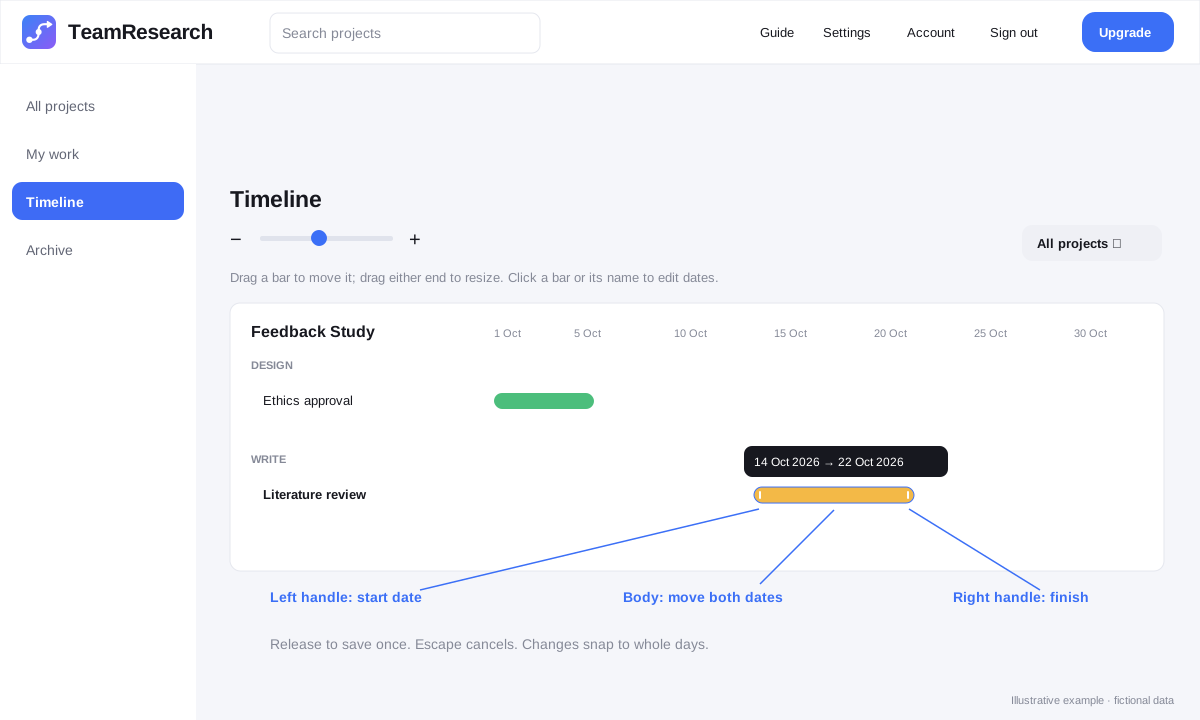
- Drag the middle of a bar left or right to move both dates while keeping the same duration.
- Drag the left handle to change the start date and keep the finish date fixed.
- Drag the right handle to change the finish date and keep the start date fixed.
- Movement snaps to whole days. A finish date cannot be earlier than its start date; same-day items are allowed.
- Release to save once. Press Escape before releasing to cancel the drag.
For example, a bar running 10–15 October becomes 8–15 October when you move its left edge to 8 October, or 10–18 October when you move its right edge to 18 October. Moving the whole bar three days later gives 13–18 October.
Edit dates without dragging
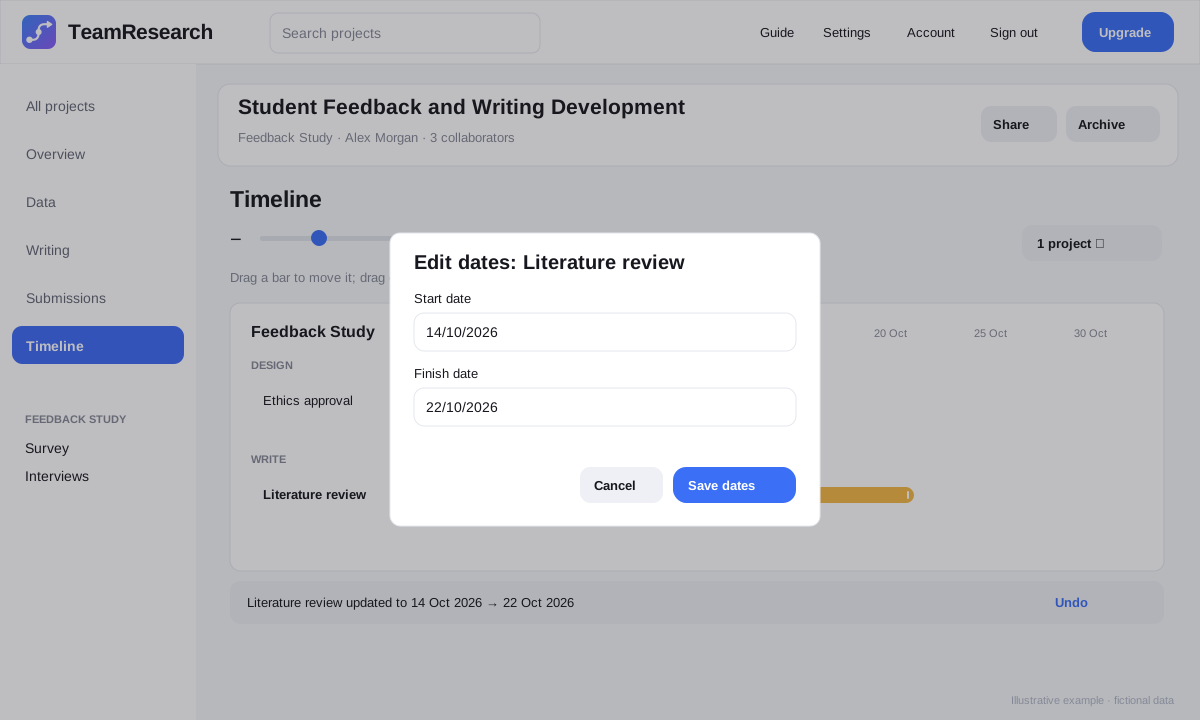
- Click the bar or its name to open the date form. With a keyboard, focus the bar and press Enter or Space.
- Choose the start and finish dates, then select Save dates. Cancel or Escape closes the form without saving.
- The existing Start and Due date controls in your project remain available.
Saving and Undo
- During a drag, the chart previews your change locally. Dates are saved only when you release the bar.
- After a successful change, select Undo within 12 seconds to restore and save the previous dates.
- If saving fails, the chart restores the previous dates and displays an error. Try again, or use Refresh timeline to reload the latest dates.
- If someone else has changed those dates, your stale change or Undo is rejected rather than overwriting their work. Refresh the timeline before trying again.
Permissions and touch screens
- You can edit only steps and writing sections in projects where you already have editing permission. Viewer access, archived projects and projects with a lapsed subscription remain read-only.
- Submission markers and revision bars show recorded submission dates and remain read-only.
- On touch screens, drag a bar horizontally to adjust dates. Swipe vertically to scroll the page, or swipe the chart background horizontally to view other dates.
- The chart does not automatically scroll sideways while dragging. Scroll the background first or zoom out before making a long move.
8. Archiving projects
Archiving removes a project from the active project list without immediately deleting it. Archived projects remain available from Archive.
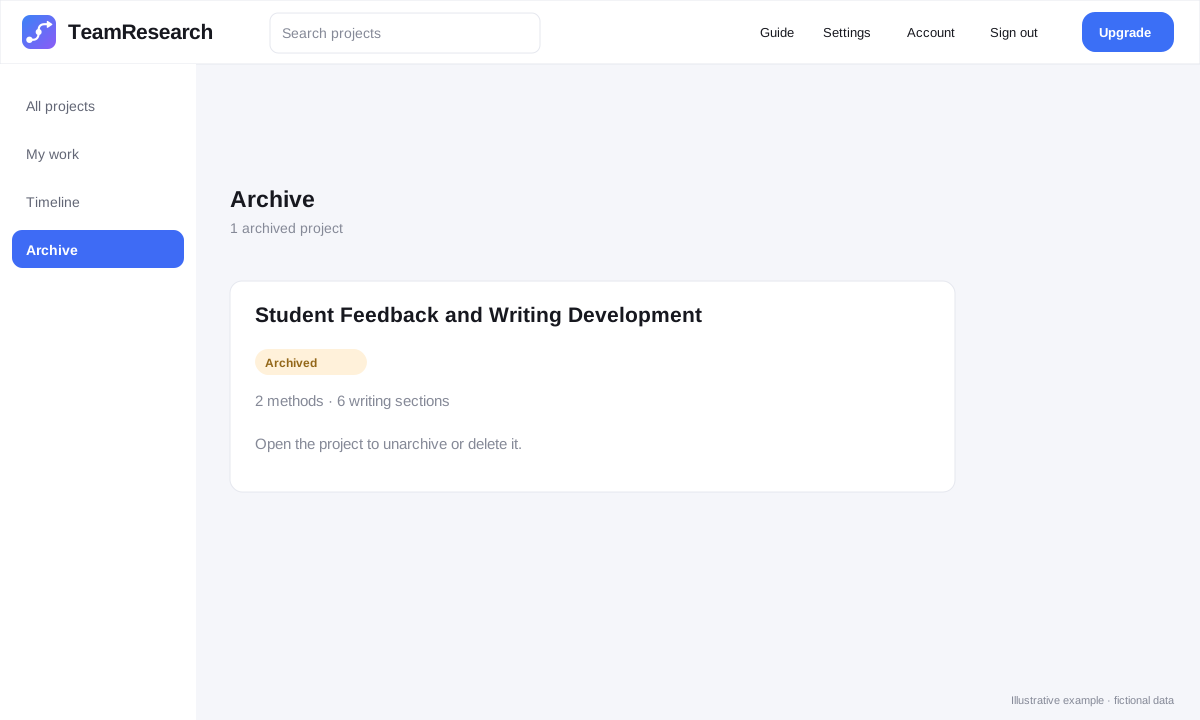
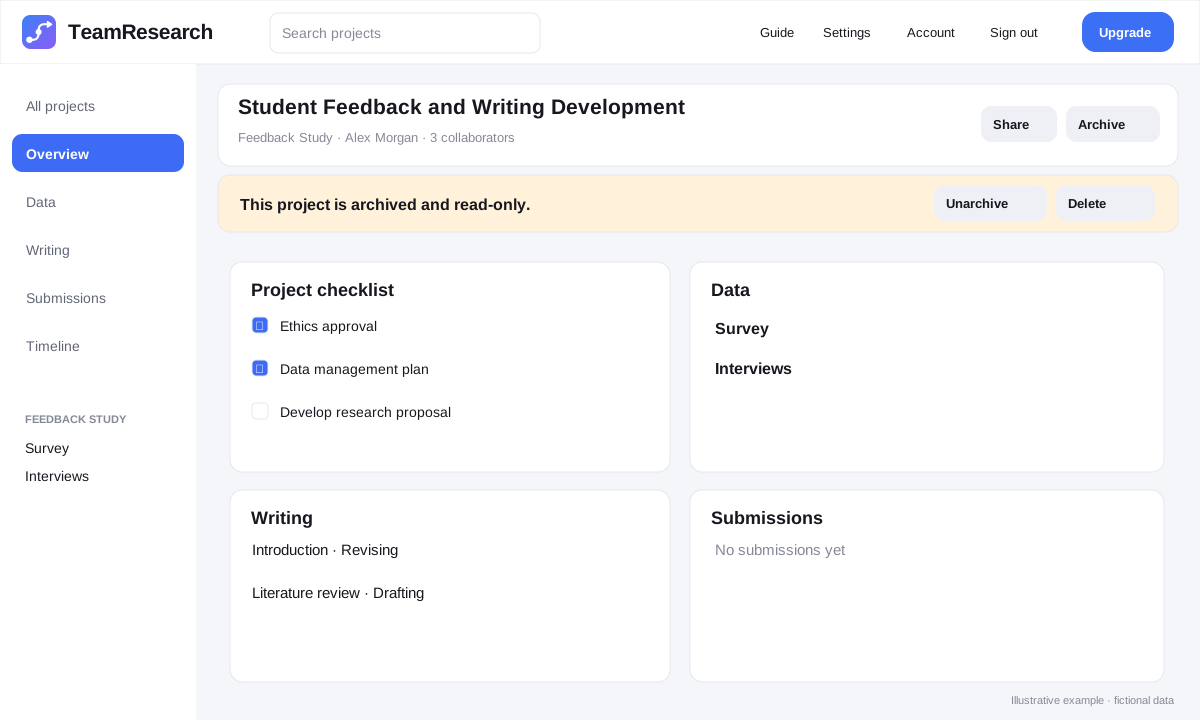
- Open Archive from the main navigation.
- Select the archived project.
- Choose Unarchive if you need to resume work.
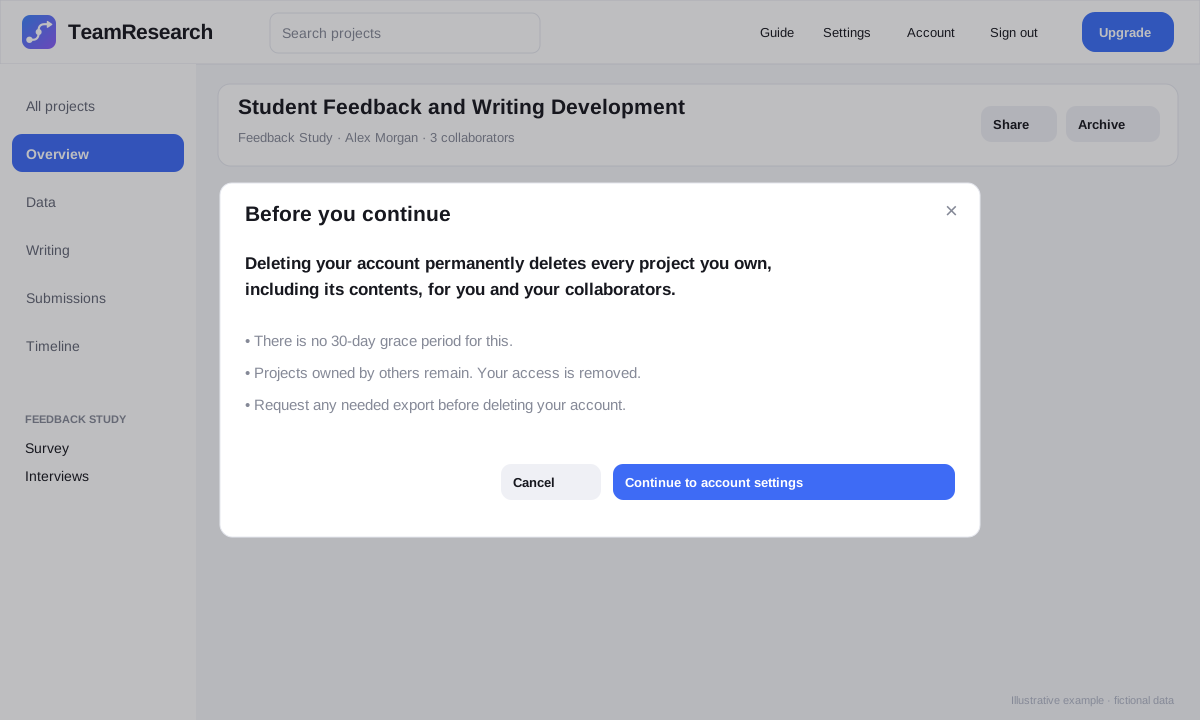
- Delete an archived project only when it should be removed. Project deletion starts a 30-day recovery period before scheduled permanent deletion; contact support if recovery is needed. Deleting an account is different and has no grace period.
9. Settings and notifications
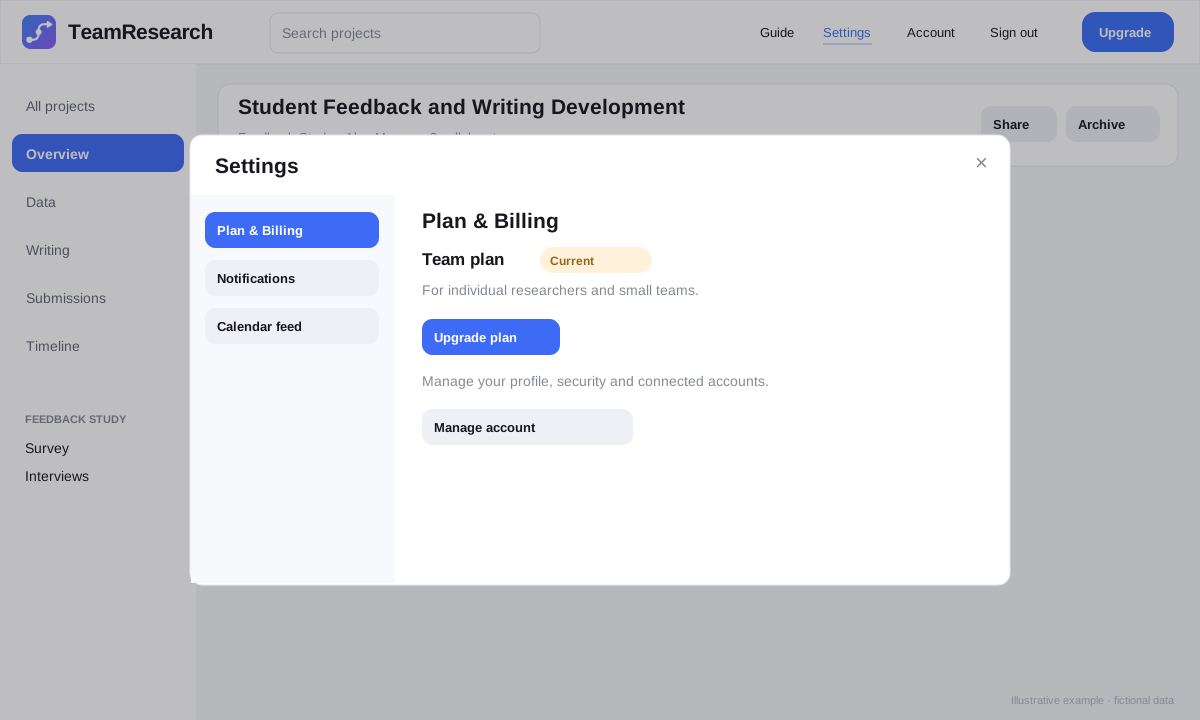
Open Settings from the top navigation. On mobile, open Menu first. Settings contains plan information, notifications and the calendar feed.
Plan & Billing
Notifications
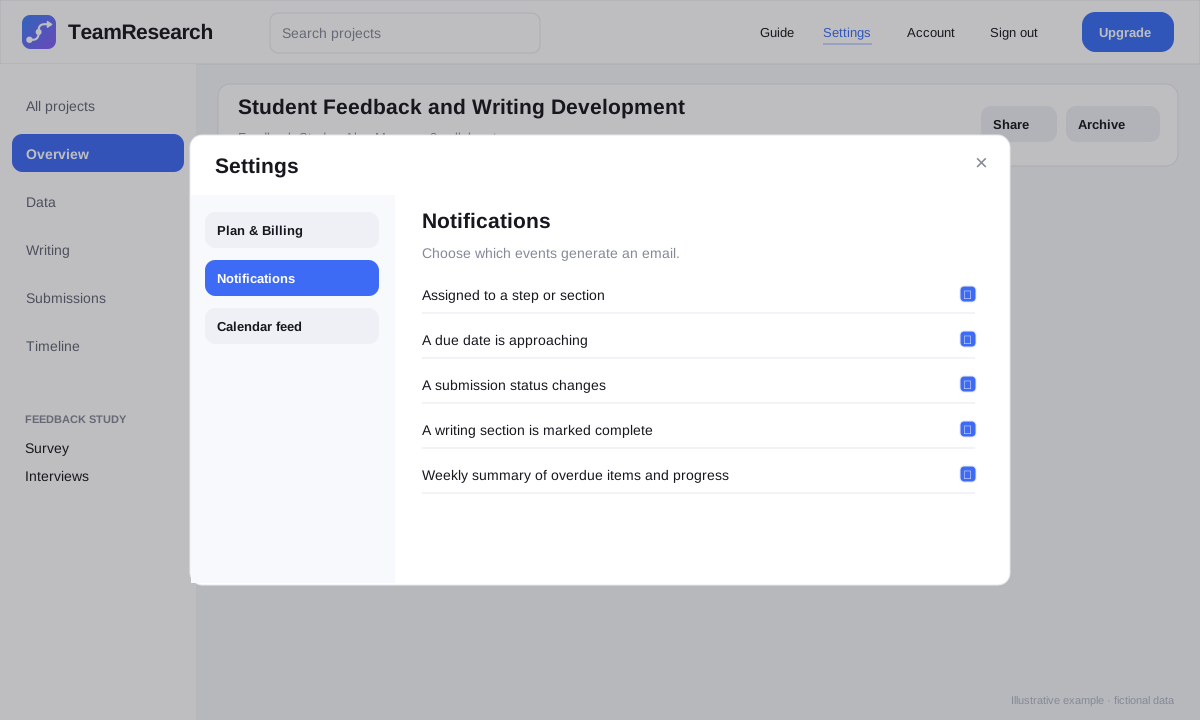
Notification choices include assignments, approaching due dates, submission-status changes, completed writing sections and the weekly summary of overdue items and project progress.
Calendar feed
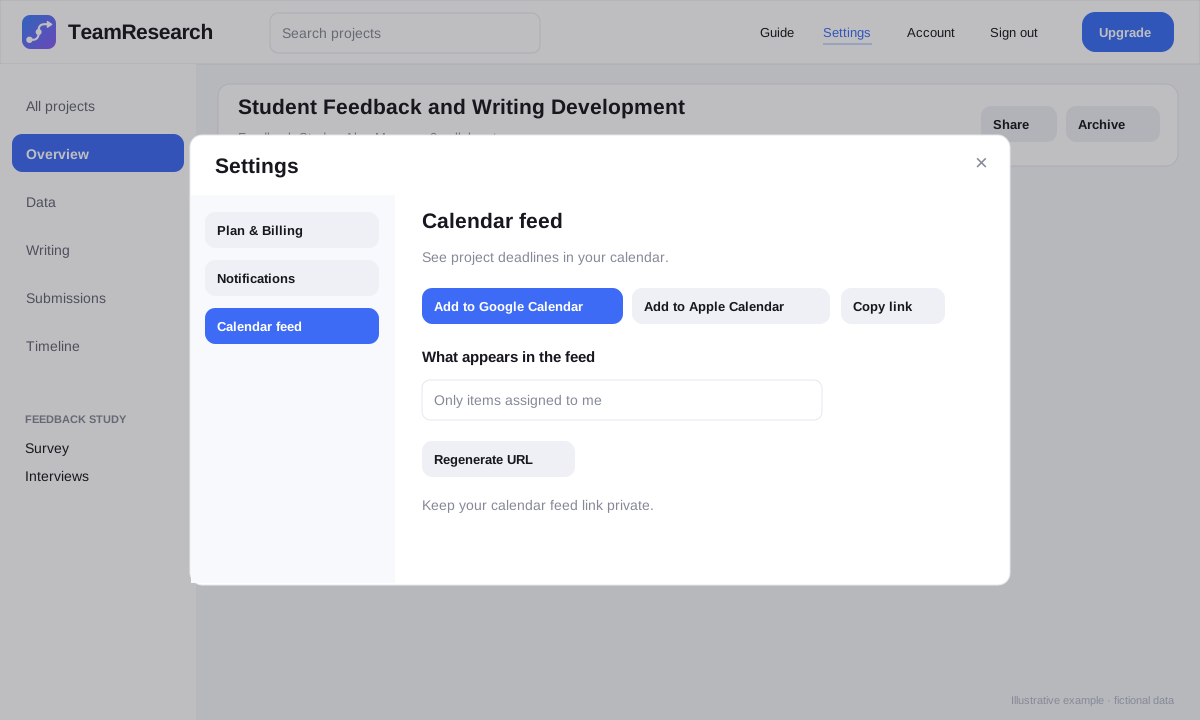
- Choose what should appear in the feed, such as only items assigned to you.
- Use the Google or Apple buttons where supported, or copy the feed link for another calendar.
- Treat the feed URL as private. Regenerate it if it is accidentally shared.
10. Account and security
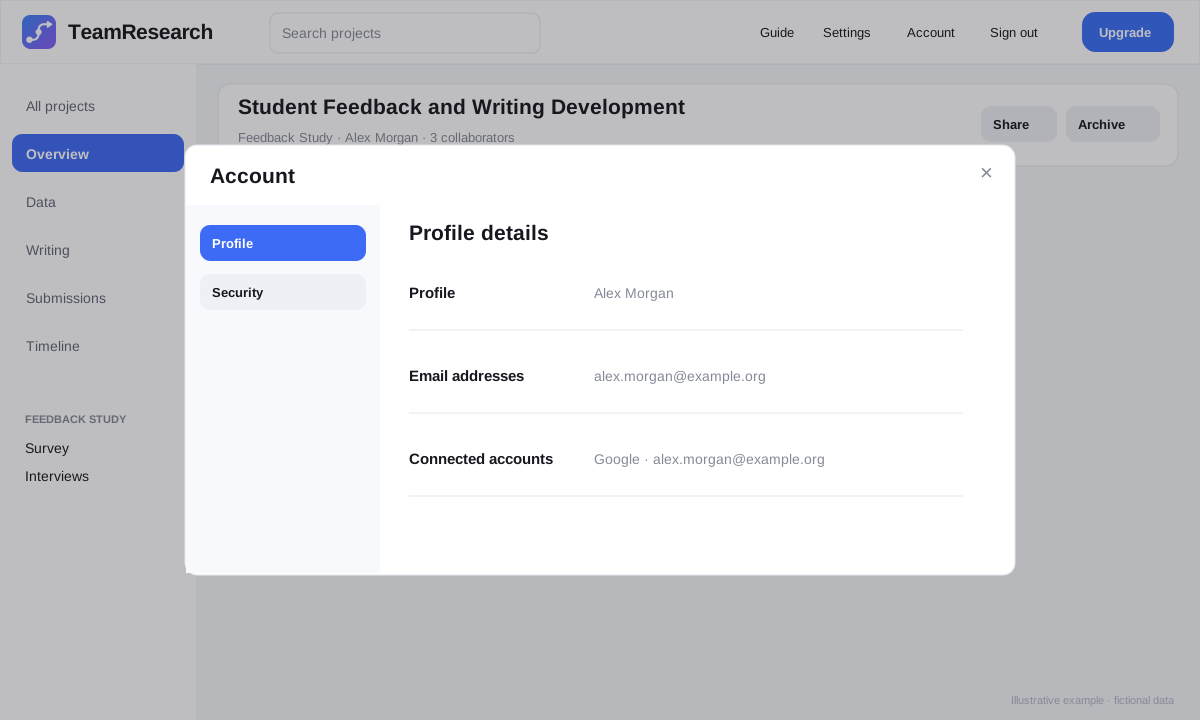
The Account area is provided by the account-management service and contains profile, sign-in and security controls.
Security
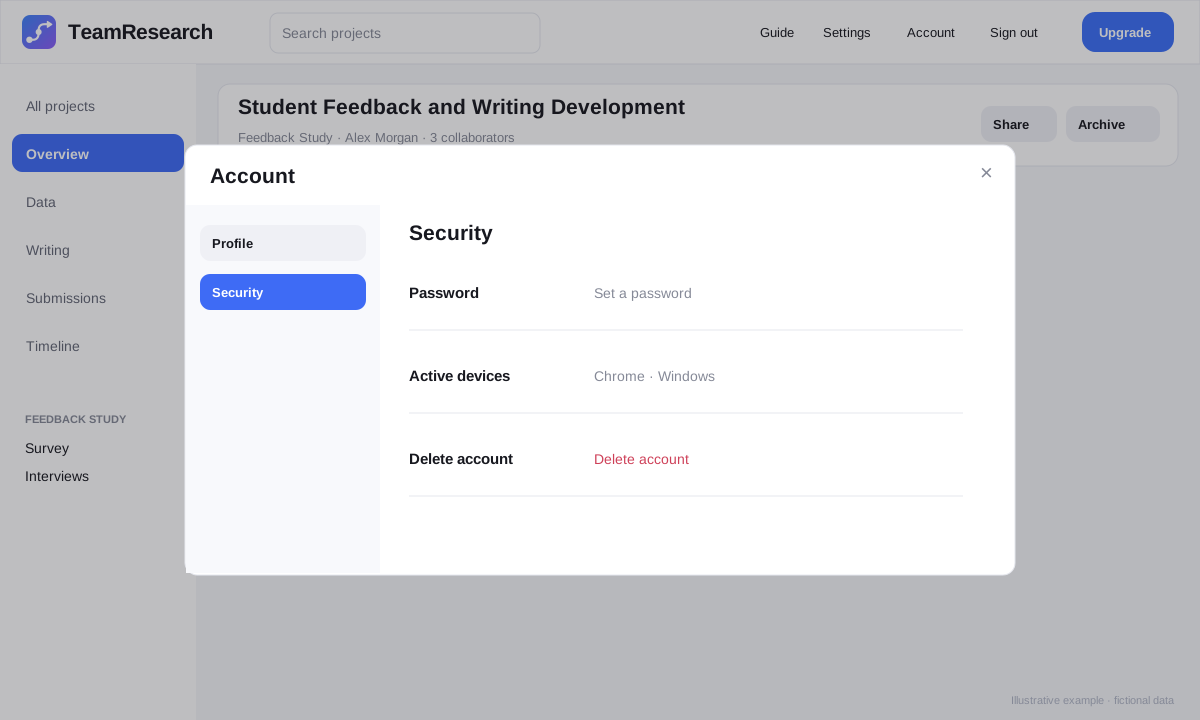
Before deleting an account, request any export you need. Account deletion permanently deletes projects you own and their contents for all collaborators, with no 30-day grace period. TeamResearch displays this warning before opening account settings.
11. Recommended workflow
A simple way to get the most from TeamResearch is to keep the project structure, dates, assignments and statuses current. That allows the dashboard views to do the coordination work for you.
- Create the project and invite collaborators.
- Set up the project checklist and research methods.
- Add dates and assignments to important steps.
- Use Writing to track manuscript sections and link working documents.
- Check My work regularly for your assigned items.
- Use Team workload when coordinating collaborators.
- Log submission changes as they happen.
- Use Timeline to review and adjust scheduled dates, and the calendar feed to keep deadlines visible.
- Archive the project when active work has finished.
Quick reference
| I want to… | Go to… |
|---|---|
| See all my projects | All projects |
| See what I need to do | My work |
| See what collaborators are doing | My work → Team workload |
| Track research methods | Project → Data |
| Track manuscript progress | Project → Writing |
| Record journal/venue progress | Project → Submissions |
| See deadlines visually | Timeline |
| Move or resize scheduled work | Timeline → drag a bar or its end handles |
| Edit timeline dates without dragging | Timeline → click a bar or its name |
| Receive deadline reminders | Settings → Notifications |
| Put deadlines in my calendar | Settings → Calendar feed |
| Resume an archived project | Archive → project → Unarchive |
| Manage profile or security | Account |